
How to Prompt AI for Design System Components
From Figma to code: Build design systems AI can actually use.

Design systems used to live in Figma. You'd define components there. Document them there. Hand them off from there. The code was the translation.
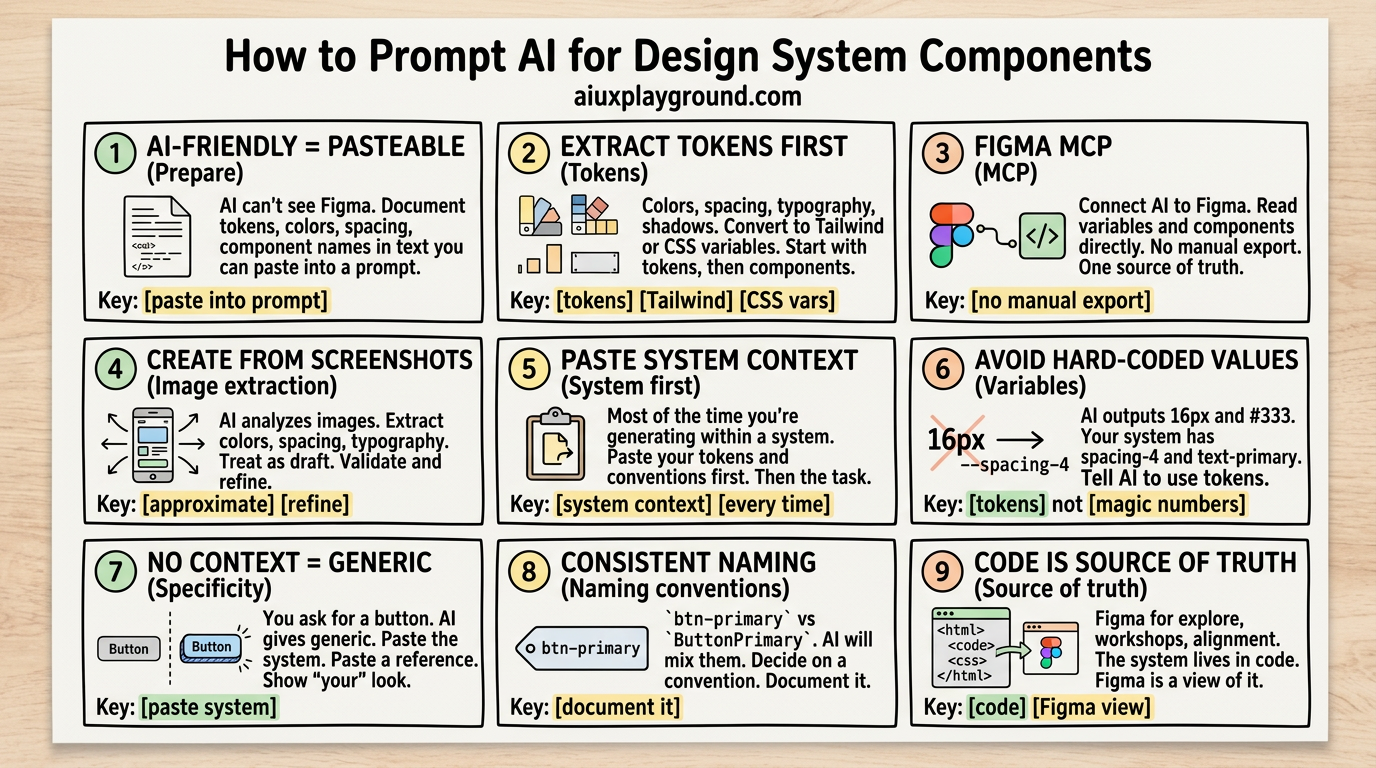
That's backwards now. The design system that actually runs is in code. Tokens. Components. The thing the user sees. Figma can still be where you explore and align. But the source of truth is the repo. If your system isn't in code, it isn't really a system. It's a reference.
So the question shifts. Not "how do I build a design system in Figma?" but "how do I build one in code, and how do I get AI to use it?"
Here's a practical guide.
What makes a design system AI-friendly
A good design system is consistent. Token-based. Well documented. AI benefits from the same things. The difference is how explicit you have to be.
Humans can infer from a Figma file. They see a button. They get it. AI can't see your Figma. It needs the rules in text. Colors. Spacing. Typography. Component names and props. All of it in a form it can read.
So "AI-friendly" means: documented in a way you can paste into a prompt. A compact system context. Design tokens as variables, not magic numbers. Clear names. Documented props. When you prompt AI to generate a button, it needs to know your primary color, your spacing scale, your button variants. If that's in a doc or a snippet you can paste, AI can use it. If it's only in Figma, it can't.
The best design systems for AI are the ones that already live in code. Tokens in a config file. Components in a library. Docs that describe both. Those are AI-friendly by default. Our Build a Design System playbook walks through the full workflow from audit to rollout.
How to create a design system from an existing one
You have a system. In Figma. Or in an old codebase. Or in people's heads. You want it in code, structured so AI can use it.
Start with tokens. Colors. Spacing. Typography. Shadows. Breakpoints. Extract them. If you have Figma variables, export them. If you have a style guide, list them. The prompt is simple:
Our Design System Audit prompt helps you assess what you have. Extract Design System from Figma MCP pulls tokens and components directly from Figma if you use the MCP. For a manual approach, UI Component Specification gives you a structure for documenting components so AI can consume them.
Example:
Then components. "Here are our button variants from Figma. Create React components that use our tokens. Primary, secondary, disabled, loading. Match our spacing and typography." Design System Component Creation is built for this.
The trick is giving AI enough context. The tokens. The variant names. The props. Don't assume it knows your conventions. Spell them out.
Using Figma MCP: Extract directly from Figma
If your design system lives in Figma, you don't have to export variables or copy specs by hand. Figma MCP (Model Context Protocol) lets AI tools connect to your Figma file and read it directly. Tokens, components, styles. The AI can see what you have and turn it into a structured system for code.
MCP is a protocol. Figma supports it. So do Cursor, Claude Code, and other tools that use MCP. You connect your Figma file. The AI reads your variables, component properties, and styles. Then you prompt it to output a Tailwind config, CSS variables, or a component spec. No manual export. No copy-paste from the Figma UI.
When to use it: Your system is in Figma. You use variables. You have components with clear structure. You want to move that into code without retyping everything.
When to skip it: Your Figma file is messy. Variables are inconsistent. Components aren't structured. In that case, start with an audit or a manual extraction. MCP will only reflect what's in the file.
How to get started: Enable Figma MCP in your AI tool (Cursor, Claude Code, etc.). Connect your Figma file. Then prompt: "Extract our design tokens and component structure from this file. Output a Tailwind config and a list of components with their props." Our Extract Design System Using Figma MCP prompt gives you a ready-made structure for this. Use it as a starting point and adjust for your file.
The main benefit: one source of truth. You update Figma. The AI can read the latest version. No stale exports. No manual sync. Your Figma file becomes the input. The AI turns it into the system context you paste into prompts.
How to create a design system from screenshots
Sometimes you don't have a system. You have screenshots. A competitor's product. An old app. A mood board. You want to extract a system from it.
You can. With limits.
Prompt AI to analyze the image. "Extract the color palette from this screenshot. List hex codes and suggest semantic names (primary, secondary, background, text)." "What spacing scale does this UI use? Estimate the padding and gaps." "What typography? Font sizes, weights, line heights."
AI will guess. It can't measure pixels from an image with perfect accuracy. So treat this as a starting point. You'll refine. You'll adjust. The screenshot gives you a direction. The prompt gives you a first draft. You take it from there.
Our Extract Design System from Screenshot prompt is built for this. Paste your screenshot (or describe it), and it outputs a token structure you can refine.
Example:
Use the output as a draft. Validate against the screenshot. Tweak. Then you have tokens you can paste into future prompts.
How to prompt AI to use your system (not create it)
Most of the time you're not creating a system. You're generating within one. A new component. A new screen. A fix. The prompt needs to include your system.
That means a system context. A short, pasteable block. Your tokens. Your component names. Your conventions. "We use spacing-4 for default padding. We use text-primary for body text. Our buttons are btn-primary, btn-secondary. Our cards use rounded-lg and shadow-sm."
Design System to AI Prompt turns your system into a context block you can paste into Cursor, v0, or Claude. AI Prototype Design System Validation checks that generated output matches your system.
When you prompt for a new component, paste that first. Then the task. "Using our design system above, create a settings card component. It has a title, a description, and a toggle. Use our spacing and typography tokens."
If you don't include the system, AI will invent. It will use arbitrary colors and spacing. The output will drift. The fix is simple: always include the context. Make it a habit. Keep a file. Copy it in. Every time.
Common mistakes
Hard-coded values. AI loves to output padding: 16px and color: #333. Your system has spacing-4 and text-primary. Tell AI to use the tokens. "Use our spacing tokens, not raw pixel values." "Use our color tokens, not hex codes." Repeat it in the prompt if you have to.
No context. You ask for a button. AI gives you a generic button. You wanted your button. The fix: paste the system. Paste a reference component. Show AI what "your" looks like.
Inconsistent naming. You call it btn-primary in one place and ButtonPrimary in another. AI will pick one. Or mix them. Decide on a convention. Document it. Design System Documentation helps you structure that. Use it in every prompt.
When Figma still helps
Figma isn't obsolete. It's still where you explore. Where you run workshops. Where you align with stakeholders who don't read code. The shift is: Figma is a design tool. The system lives in code. You can sync them. Tokens from code to Figma. Components both ways. But the source of truth is code. Figma is a view of it, not the thing itself.
TL;DR
Design systems live in code. Make yours AI-friendly by documenting tokens and components in a form you can paste into prompts. Create from existing systems by extracting tokens and components with clear prompts. Create from screenshots by having AI analyze and extract a draft, then refine. When generating, always include your system context. Avoid hard-coded values. Use your tokens. Keep a system context file. Copy it in. Every time.
More resources
Resources on AI UX Playground:
- Build a Design System playbook: Full workflow from audit to rollout
- Design prompts: Audit, extract, component creation, documentation
- AI-native design systems guide: Deeper dive on building systems that work with AI tools
Explore prompts and playbooks
Browse the prompt library, playbooks for design sprints and research, and skills for accessibility and UX writing.
Weekly insights in your inbox
A weekly newsletter for designers, PMs, and builders shipping AI products. Practical AI UX: patterns, real products, no hype.